

TL;DR
Copilot is an AI coding assistant that shows up in your IDE + GitHub and speeds up your routine tasks like inline completions, multi-file edits, boilerplate, small refactors, and test scaffolding.
But you still need to review diffs and treat the output as a first draft. Plus, the “premium requests” limits can impact pricing if you use heavier models or agent features.
Who It’s Best For:
Solo devs who want faster momentum and don’t mind reviewing AI output. Also, for teams living in GitHub (issues → PRs → reviews) and doing repetitive work like CRUD, mapping, form handling, or refactors.
Key Features at a Glance
| Inline Completions | Autocomplete in your IDE (tab to accept). |
| Copilot Chat | Good for explanations, fixes, refactors, and test generation (ask, edit, agent, plan modes depend on the editor). |
| Copilot Edits / Agent Mode | It can make multi-file changes and suggest terminal commands. In agent mode, it decides which files to touch and iterates until it thinks it’s done. |
| Copilot Code Review | It can leave review feedback and sometimes suggest changes you can apply. |
| MCP Support for Agent Mode | Orgs can control MCP servers, and Copilot can plug into more context, tools safely (or not, if you don’t enable it). |
- Saves time on boilerplate and repetitive edits, and data.
- Strong at generating common scaffolding and first draft code you can polish.
- Uses the code around your cursor plus other open files to make suggestions that fit the context.
- Change multiple files by applying a single prompt, then review the diff.
- Pricing is predictable if you watch the usage. GitHub is pretty clear about usage metrics and what it costs if you go over.
- It can be confidently wrong. Code can look perfect and still miss a requirement or edge case.
- Premium requests increase the costs. Chat, agent, code review, and CLI can consume premium requests, and model multipliers can make one “big model” prompt count as multiple requests.
- Agents raise the risk level. If the tool suggests commands and touches multiple files, you need a strict review.
- TL;DR
- Who It’s Best For:
- Key Features at a Glance
- Why You Can Trust This Review
- Quick Intro to GitHub Copilot
- GitHub Copilot Features
- My GitHub Copilot Usage and Testing
- Plans, Pricing, and Limits
- Code Quality, Security, and Trust
- Real User Reviews: What are Users Saying About Copilot?
- GitHub Copilot Alternatives
- Final Verdict
- Frequently Asked Questions
Why You Can Trust This Review
I signed up for GitHub Copilot free trial, and tested it in VS Code using a simple JS + a Next.js sandbox. Then used it on React + Laravel-style backend tasks. I tried it across different codebases to see where it actually helps and where it wastes time.
I also cross-checked every feature and stat against GitHub’s own docs and independent data. For real user experience, I compared my notes against patterns in G2 reviews and Reddit.
So, read on for my hands-on experience. Find out the features that save time, where it break down, and how the limits affect daily use.
Quick Intro to GitHub Copilot
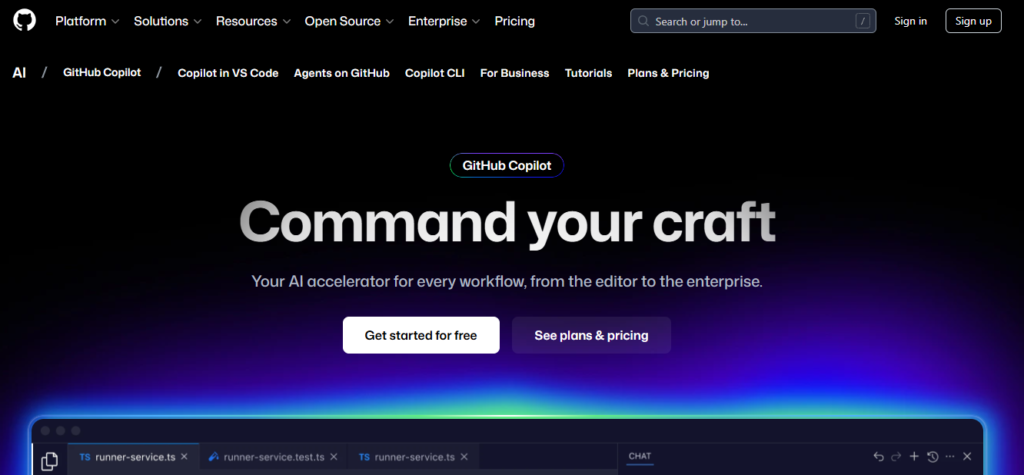
GitHub Copilot is a coding assistant and pair programmer that helps you write and change code without constant context-switching.
It works across common IDEs (VS Code, Visual Studio, JetBrains, Xcode, etc.), GitHub.com, GitHub Mobile, and the terminal via GitHub CLI or Windows Terminal chat.
Copilot is a stack of features and a solid speed boost for boilerplate, debugging, and learning unfamiliar code (if you still review what it writes like you would any other PR).
GitHub Copilot Features
Copilot features span the whole coding workflow. You can write (completions), reason (chat), change (edits), and sanity-check (code review). It works best when you keep it in real repo context and treat every output like a draft diff.
Inline Code Completions
Copilot offers ghost-text suggestions that you can accept, modify, or reject. They are generated from surrounding code context and work best when you’re in a predictable workflow, like API glue, repetitive patterns, tests, builders, or mapping.
Next Edit Suggestions (NES) is the new feature that predicts the next place you’re going to edit based on your recent changes. It can suggest small edits or multi-line changes, and it’s in public preview in some editors.
It shines at fast scaffolding for repetitive patterns (DTOs, mapping code, boilerplate tests, small glue code).
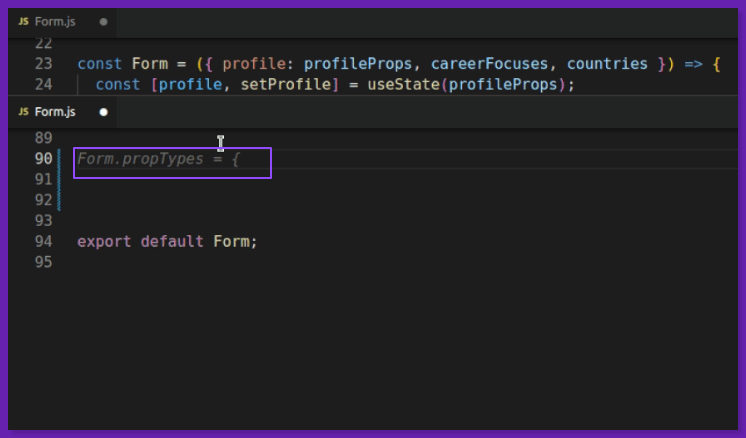
At the same time, it will confidently generate something that looks idiomatic and compiles, but subtly violates requirements. For example, off-by-one, wrong null behavior, missing auth checks, and wrong edge cases.
Copilot Chat
Copilot Chat is the conversational layer. You can ask questions, get explanations, generate tests, propose fixes, and get refactor guidance without leaving your repo context.
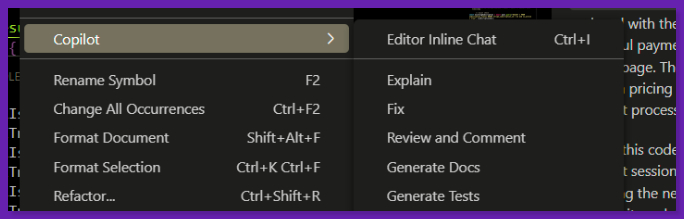
It’s supported across multiple IDEs, and you can ask things like:
- “Explain this file / function.”
- “Why is this failing?”
- “Refactor this so it’s readable.”
- “Generate unit tests” (GitHub publishes dedicated test-generation tutorials and cookbook patterns).
Copilot offers the best responses when you give it constraints: “use our existing logger,” “match the current error pattern,” “no new deps,” “keep this API stable.” (Otherwise, it will happily redesign your app like it’s a weekend hackathon.)
Copilot Edits
The Copilot Edits feature helps you deal with boring diffs. You can prompt it to make changes across multiple files from a single request. It has two modes:
- Edit Mode: You can pick the files and accept changes step-by-step (more control).
- Agent Mode: Copilot chooses files, proposes code, and can run tools/commands as per the environment.
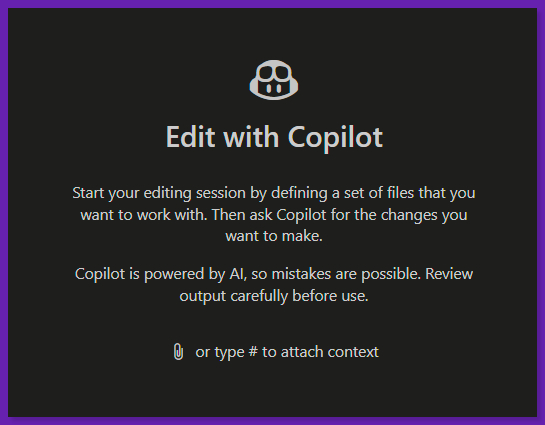
Agent mode is great when the task is multi-step, but be careful around the terminal. The agent can run commands and iterate based on error or build context.
Copilot Code Review
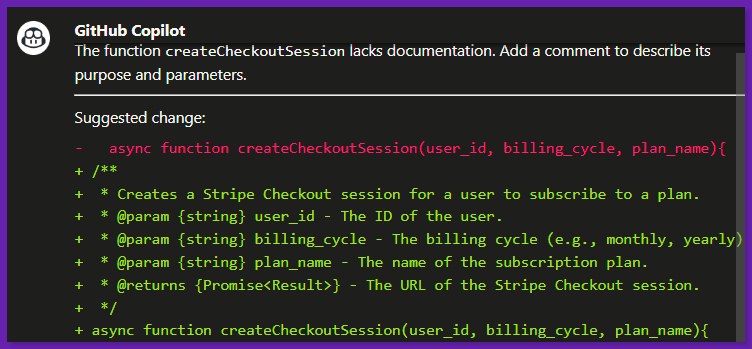
Copilot can generate review feedback on PRs and often includes suggested changes you can apply quickly. It’s good at finding obvious issues like missing null checks, error handling gaps, unused code, and inconsistent naming.
Also, it can gather more project context for specific reviews and integrate signals from tools like CodeQL, ESLint, and PMD for higher-signal findings (in preview tooling).
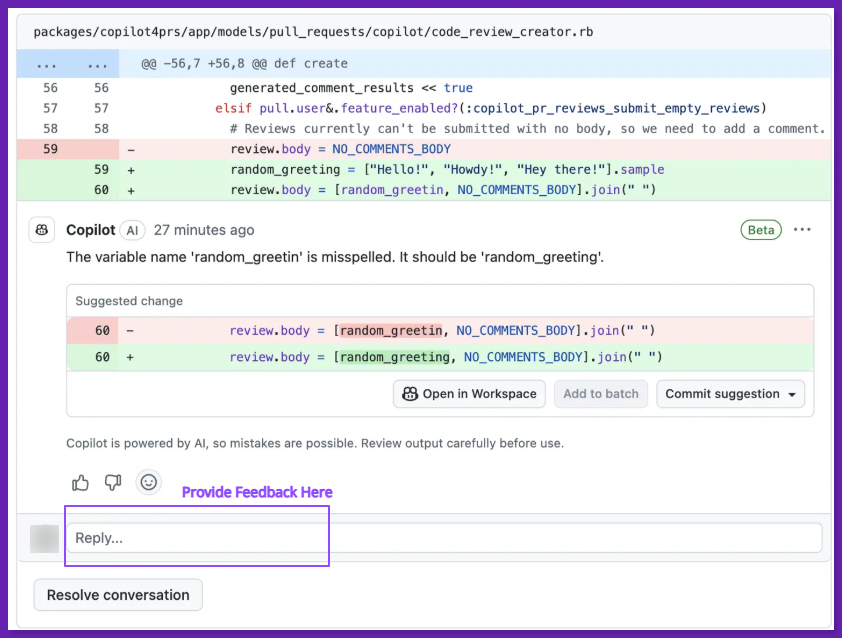
Copilot Spaces GA + MCP (Model Context Protocol)
Spaces are curated context containers, where you can bundle repos, PRs, issues, notes, or uploads, so Copilot answers are based on correct context. You can also share Spaces with your team.
MCP (Model Context Protocol) is the connective open standard to let AI clients talk to tools or data servers. GitHub has an official MCP server that lets agents interact with GitHub (repos, issues, PRs, workflows) through natural language tooling.
Extensions, Integrations, and APIs
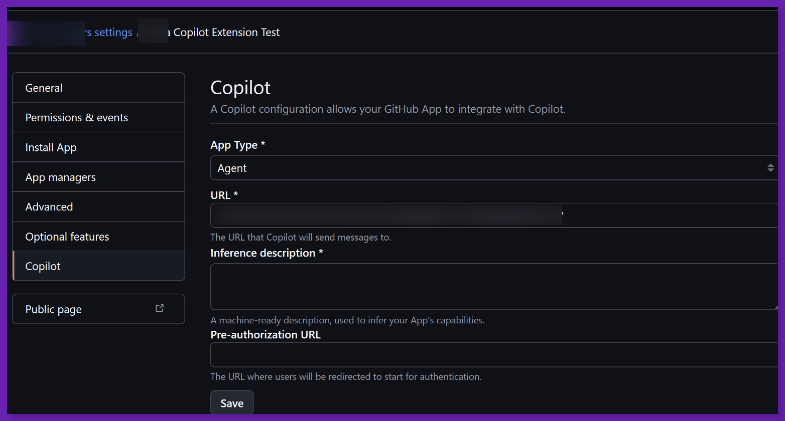
Copilot Extensions helps you bring your tools into Copilot Chat. There’s a Marketplace view filtered for Copilot-ready apps and an official toolkit for builders.
You can also assign issues to Copilot via both GraphQL and REST API, including options like target repo, base branch, and custom instructions/custom agents.
Model Choice: Auto-Selection + Manual Picker
Copilot can auto-select a model to reduce mental load and manage availability. You can also manually switch models in Copilot Chat. GitHub’s docs also warn that the model list can change and that different models have different “multipliers” that affect usage consumption.
My take is to use auto as the default, then override intentionally. Like for refactors, pick the one that’s best at large diffs + instruction-following.
Team and Admin Features
If you need Copilot for an organization, the admin surface includes:
- Policies and features, model availability controls at the enterprise level.
- Content exclusion (Copilot ignores specified repos and paths. Excluded content won’t inform suggestions, chat, or review).
- Audit logs for Copilot Business (track policy changes, seat changes, etc., with a 180-day window).
- Usage and adoption metrics so you can measure rollout reality vs. “we bought seats.”
If you have secrets-adjacent repos, regulated code, or do not leak directories, exclusions are a must-have.
My GitHub Copilot Usage and Testing
For this review, I ran Copilot through two very different checks.
1) VS Code (JS/React + PHP/Laravel)
I installed Copilot in VS Code and kept the setup basic. It was enough to start using it and see what happens when you work normally.
My stack for the test was:
Frontend: JavaScript + React (including a quick Next.js sandbox)
Backend: Laravel-ish PHP + some JS
Method: Two controlled sandboxes (plain JS + Next.js), then actual project tasks, so I could separate demo and shipping code performance.
Here’s what I tested:
Tiny algorithmic utility: hex → rgb
React scaffolding: Basic page/component stubs (and I watched for latency and hallucinated framework boilerplate)
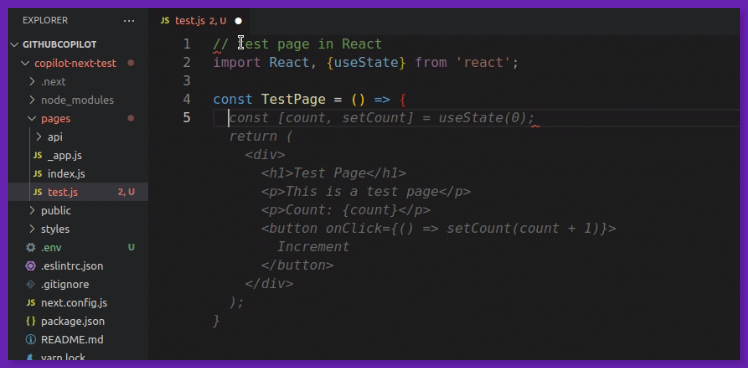
Laravel patterns: Guard clauses, exceptions/messages, model field guesses, and API-library integration where accuracy is important.
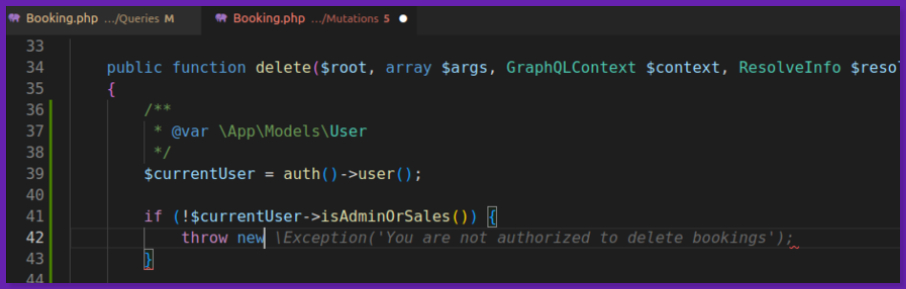
I kept related files open in tabs to see if Copilot actually uses cross-file context. And it does, impressively, if the instructions are on-point.
Copilot works especially well for Python, JavaScript, TypeScript, Ruby, Go, C#, and C++, and it’s officially positioned as IDE-native suggestions + chat.
2) Copilot Workspace: Issue → Plan → PR, on a Flask App
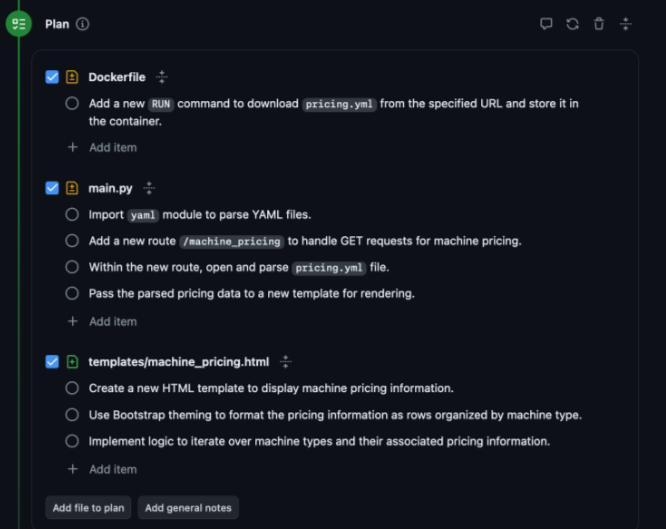
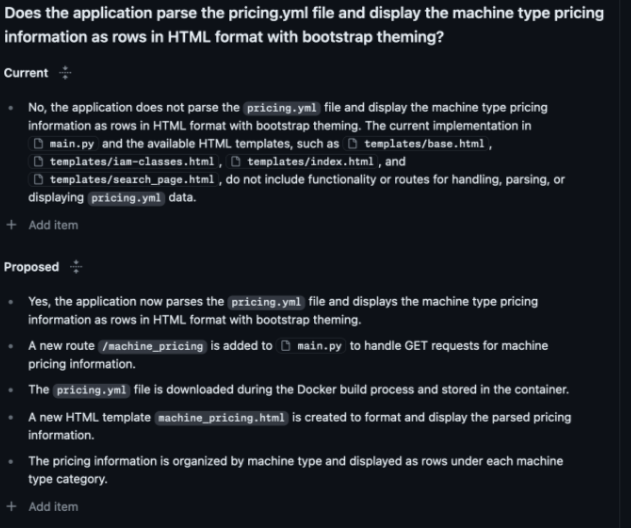
I also tried Copilot Workspace (the GitHub Next web IDE/agent flow). The workflow is basically, start from a GitHub Issue, let it draft a spec, generate a plan, then implement and open a pull request.
I used a deliberately simple Flask app and gave it a pretty practical task. Add a route, page to expose machine type data (and eventually pricing), based on local data generation tooling. The key point is the app is small enough that an agent should be able to behave.
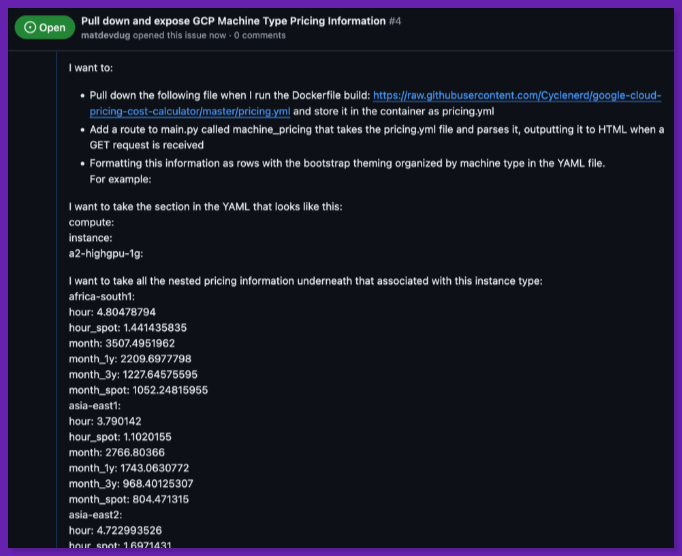
I tested agent realism to see if it can follow existing conventions (templates, navigation, data formats). Or if it can handle dependencies + Dockerfile changes without faceplanting.
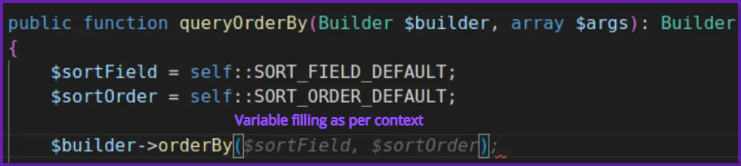
When related files are open, Copilot can fill structures (like detailed propTypes, nested shapes) that are difficult to do manually.
The Impact: Productivity Gains and Limitations
When Copilot is given context, it can get you a working draft without the multi-tab search-and-paste loop. In Laravel-style code, it even pulls in plausible model fields. It’s not always perfect, can improve task completion speed and reduce load.
Among limitations, Copilot can suggest code and miss key details (variable/value mismatch). In the PHP test, Copilot could infer related concepts (like MIME types) but still produced the wrong Cloudinary integration. So, you end up back in reference docs anyway.
For me, it generated a PR, but missed the actual intent in basic ways. It didn’t add the needed Flask route, drifted away from existing JSON conventions, and chose a “just put it in the README” output path.
It struggled to respect existing app structure and frontend conventions (base template usage, navigation wiring), and started redoing styling choices.
My Take: Copilot is a productivity tool if you keep it scoped to boilerplate, scaffolding, and pattern-heavy work, and when you treat every suggestion as a draft that still needs judgment. The minute you hand it an agent-style task with real constraints (dependencies, build steps, conventions), it can turn into a PR-shaped time sink fast.
Plans, Pricing, and Limits
Currently, Copilot has five pricing tiers:
| Plan | Price | Premium Requests/Month | Notes |
| Copilot Free | $0 | 50 | Also includes 2,000 code completions/month + limited chat messages/month |
| Copilot Pro | $10/mo or $100/yr | 300 | Individuals. Free for some students, teachers, and OSS maintainers |
| Copilot Pro+ | $39/mo or $390/yr | 1500 | Higher allowance for heavier models and agent usage |
| Copilot Business | $19/seat/mo | 300 | Org controls. Granted seat pricing |
| Copilot Enterprise | $39/seat/mo | 1000 | Highest included allowance + enterprise features |
The pricing looks simple, i.e., a monthly per-user fee. But when shifting to premium requests, some models and advanced experiences draw down a monthly allowance. And if you run out, you either wait for the reset or buy more.
For example, premium requests aren’t “one prompt = one request.” GitHub measures usage based on the model multiplier + the feature you’re using.
If a model has a 10× multiplier, a single chat interaction counts as 10 premium requests. So, you can burn through a 300-request month faster than you’d expect. Also, you can purchase additional premium requests (currently listed at $0.04 per request). It is where extra costs can show up for power users.
On the upside, the tiering is logical. You can get a subscription, teams get admin and policy controls, and enterprise customers get the most headroom and org-focused features.
Code Quality, Security, and Trust
Copilot can improve code quality if you treat it like a fast draft generator. It can produce clean-looking code that compiles. The risk is that it can hide wrong assumptions, missed edge cases, or subtle behavior changes.
On the trust side, GitHub offers a couple of guardrails you should actually turn on. There’s a policy to block suggestions that match public code (a code-referencing filter) to reduce the chance you paste something license-shaped into your repo.
For orgs, use content exclusion to tell Copilot to ignore specific files or paths. The excluded content won’t influence suggestions, chat answers, or Copilot code review.
Data Handling + Privacy Controls
If you’re in Copilot Business or Enterprise, GitHub states it does not use that data to train its models. Combine that with content exclusion, and you can get a practical privacy-focused tool.
Prompt injection is a big risk, and the UK NCSC has publicly warned it’s not “just SQL injection again” as LLMs don’t cleanly separate instructions from data.
The issue is even bigger when you let an agent read issues, PRs, docs, and then run tools or propose commands.
Safe Usage Checklist
Real User Reviews: What are Users Saying About Copilot?
Users have mixed opinions on different platforms, forums, and review sites. Some people like it because it keeps them moving, and others don’t trust it.
On G2, reviewers often describe Copilot as “easy to integrate” and genuinely helpful for day-to-day work like boilerplate and repetitive patterns.
They like inline completions that can turn a comment or partial line into a full block of code. Also, they like having chat in the editor for quick explanations and snippets.
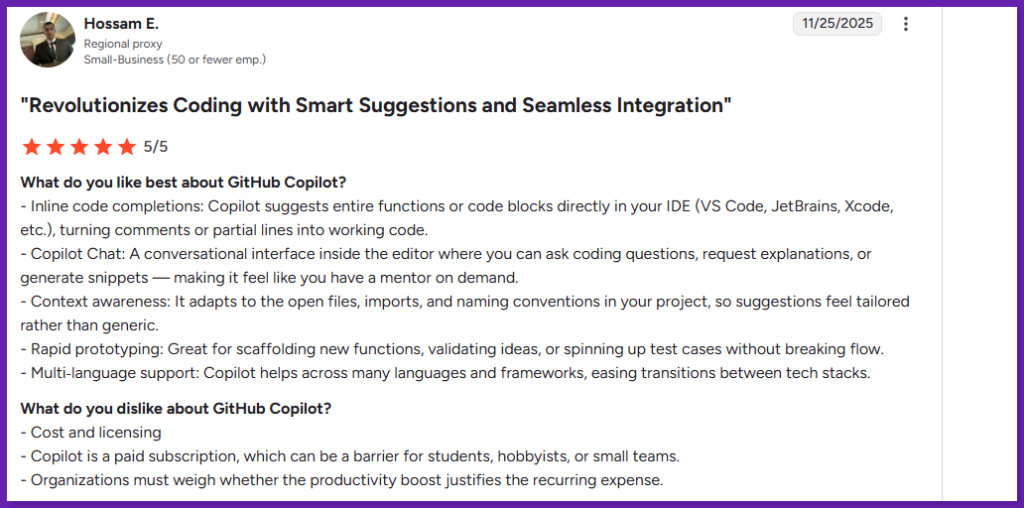
A few reviewers even put numbers on it. One claims Copilot cuts their coding time by 30–40% for common patterns and learning new APIs.
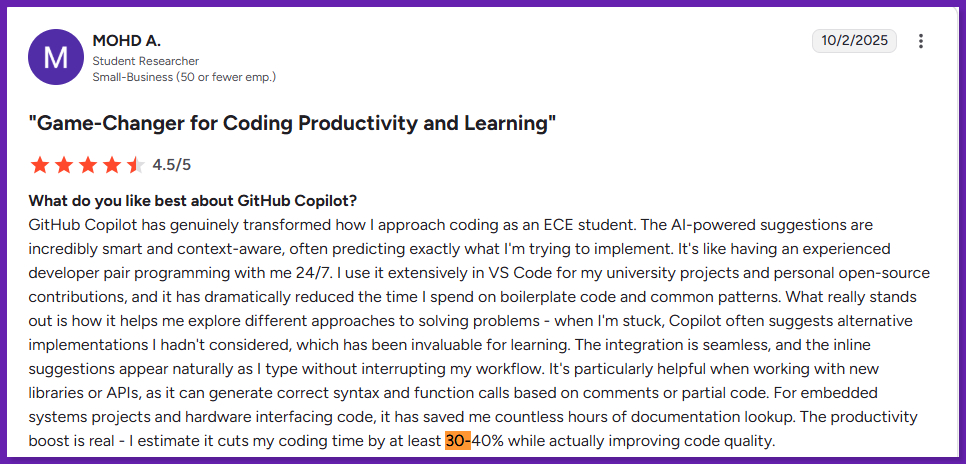
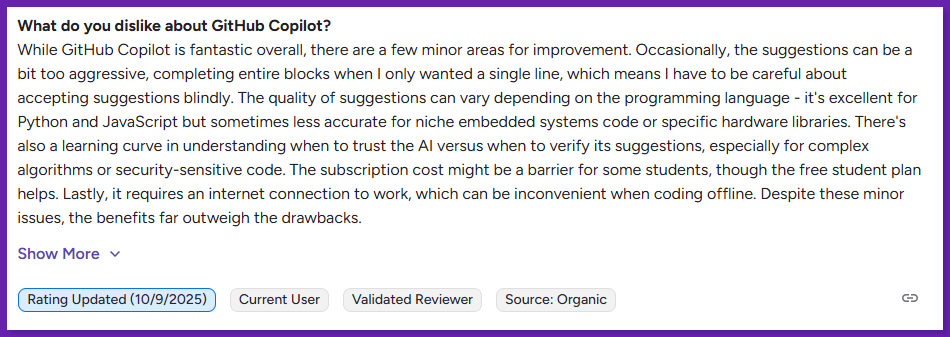
But some also call out the downside. Copilot can be too eager, and it sometimes gives confident-but-wrong code that you still have to double-check. Cost comes up, too, especially for small teams who feel the subscription isn’t easy to justify.
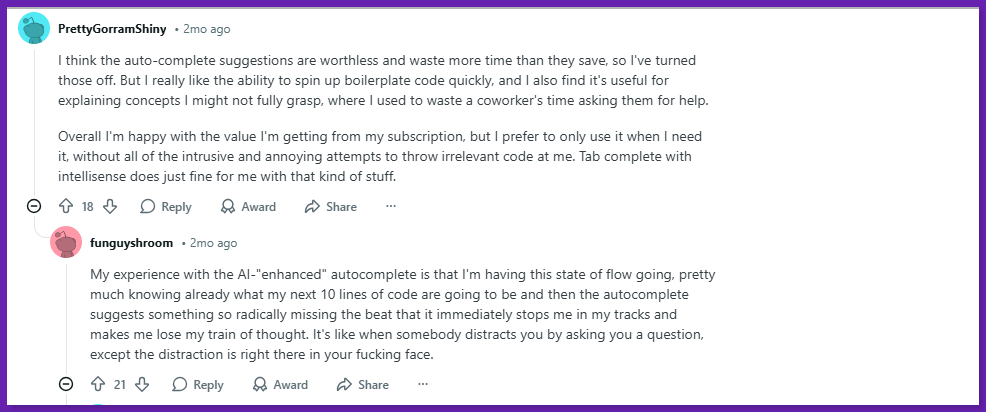
Reddit threads show the most mixed reactions. Some users say autocomplete is a “miss” most of the time and literally turn completions off because it breaks their flow.
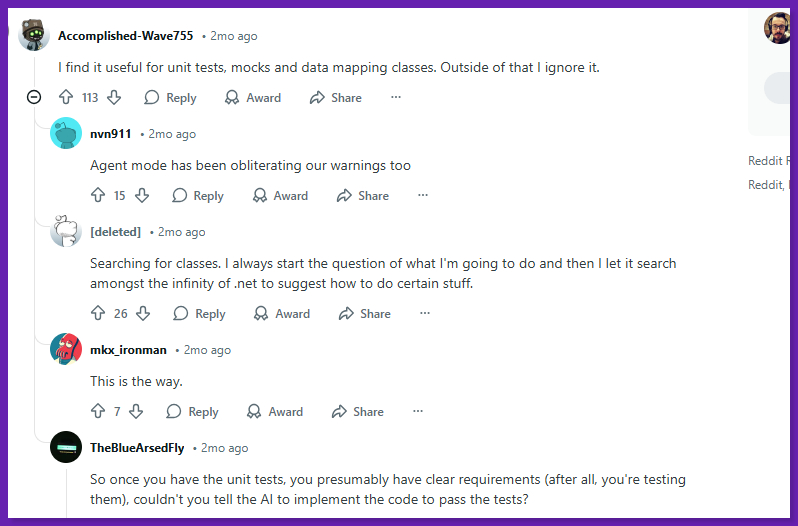
Others say Copilot is worth it mainly for tests, mocks, data mapping, small refactors, and debugging, but not for designing larger features end-to-end.
Copilot is popular, but sentiment is not pure hype. The Stack Overflow 2025 survey lists GitHub Copilot (68%) as one of the top out-of-the-box AI tools. While overall positive sentiment toward AI tools dropped to around 60% this year.
So users aren’t saying Copilot is the best. They’re saying it’s a strong helper for the “easy 70%,” and you still need to work on the hard parts.
Final Verdict
GitHub Copilot is worth it if you spend most of your day in an IDE and want faster momentum on routine tasks like inline completions, chat, multi-file edits, reviews, MCP grounding, and agent workflows. It accelerates typing, refactors, and PR grind work. It does not replace careful review, because its most dangerous mistakes look reasonable at a glance.
The main downside is cost + limits. The Free plan is tight. Pro is the normal pick for solo devs, but “premium requests” can increase the costs. For teams and enterprises, Copilot makes the most sense. You can focus on content exclusion for sensitive paths and policies around which models or features people can use.
My Honest Take: Copilot is a solid “work faster” tool and a smooth option if GitHub + IDE is your whole workflow. It speeds up boilerplate, suggests patterns, and helps explore unfamiliar APIs. Just don’t trust the output blindly and do careful review, edits, and tests.