
TL;DR
Cursor is a VS Code–style editor with AI deeply embedded into everyday coding workflows. It shines when you want fast setup, strong autocomplete, and AI-assisted multi-file edits through Agent and Composer.
That said, Cursor still behaves like a powerful junior developer. It makes incorrect assumptions, misses edge cases, and occasionally ignores instructions. You should always review diffs, run tests, and treat its output as a first draft. Pricing is also credit-based, which can be confusing once you move beyond casual use. The $20/month Pro plan is effectively required for serious daily work.
Who It’s Best For
Developers who already live in VS Code and want AI inside the editor for faster edits, refactors, and cross-file changes. Also a good fit for teams that need admin controls, SSO, and clear privacy guarantees, but are comfortable reviewing AI output closely.
Key Features at a Glance
| Feature | Cursor |
| Editor Type | Standalone editor built on a VS Code fork. |
| Tab Suggestions | Unlimited on Pro and above; strong coding-focused suggestions. |
| Agent | Can plan tasks, edit multiple files, and run terminal commands. |
| Review Before You Apply | Shows diffs so you can accept or reject changes. |
| Pricing Plans | Hobby is free with limited Agents and Tabs. Pro at $20/month, enterprise plans available. |
| Usage Model | Credit-based usage tied to premium models. Pro includes 20 of the premium model usage per month. |
| Privacy Controls | Privacy Mode with zero data retention. As per Cursor, code is not used for training. |
| Security | SOC 2 certification is listed on the pricing page. |
- Familiar VS Code–like interface with minimal setup friction.
- Strong autocomplete (Tab). Custom model tuned for coding.
- Agent can handle multi-file edits and repo-wide changes with project context.
- Bugbot for GitHub PR review. Good at catching subtle bugs and AI-generated mistakes.
- Privacy mode, enterprise controls, and a clear data use policy.
- Large refactors still require careful manual review.
- Free Hobby limits are strict. Pro is almost required for daily work.
- The agent sometimes ignores rules or gets stuck on generating. You cannot fully trust it yet, and manual review is a must.
- Credit-based pricing can feel confusing once you exceed the included usage.
- TL;DR
- Who It’s Best For
- Key Features at a Glance
- Why You Can Trust This Review
- Quick Intro to Cursor AI
- Cursor AI Features
- My Coding Experience with Cursor AI
- What I Saw in Real Use: Speed, Quality, And Team Fit
- Cursor AI Pricing and Plans
- Privacy, Memory, and Data Handling
- Real User Reviews: What are Customers Saying About Cursor?
- Cursor AI vs. GitHub Copilot and Other Alternatives
- Other Cursor Alternatives
- Final Verdict
- Frequently Asked Questions
Why You Can Trust This Review
I’m an AI practitioner who actively works with AI-assisted coding tools. I wrote this review after hands-on testing over several days, not by relying on feature lists or marketing material.
I tested Cursor the way developers actually use it for vibe coding. I started from empty folders, turned loose ideas into working code, and iterated quickly using Agent, Tab autocomplete, Composer, and Bugbot. I ran terminal commands, created and modified files, handled errors, and pushed Cursor through multi-file and repo-wide changes to understand where it improves flow and where it breaks down.
Because vibe coding only works when the AI is dependable, I closely tracked incorrect assumptions, ignored constraints, edge case failures, and how often manual fixes were required. Every change was reviewed using diffs and validated by running the code locally.
To validate these findings, I compared my notes with recurring feedback from verified G2 reviews and long-form forum discussions, focusing on patterns that appeared consistently across users.
I also reviewed Cursor’s official pricing pages to confirm plan limits and credit usage, and checked their privacy and security documentation, including data usage policies and SOC 2 disclosures.
The goal of this review is to help you understand where Cursor meaningfully improves developer productivity, where it still falls short, and whether it fits your workflow before you commit to a plan.
Quick Intro to Cursor AI
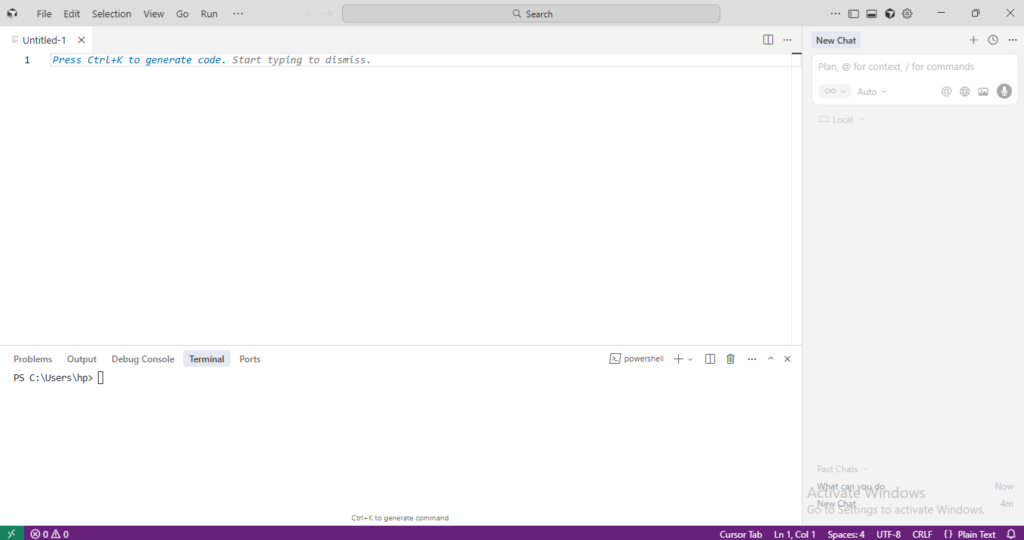
Cursor is an AI-powered code editor and IDE for Windows, macOS, and Linux. It is a fork of Visual Studio Code with AI features for autocomplete, chat, codebase search, and rule-based agents.
The environment is like VS Code, and you can ask questions about your repo in natural language. You can also accept tab completions, highlight code, ask for a rewrite, or run an Agent that plans changes, edits files, and runs commands.
How Cursor AI Works?
Cursor uses the open-source VS Code codebase and layers AI on top. The command palette, panel layout, file explorer, editor tabs, and integrated terminal are similar. Cursor also supports most VS Code extensions.
The AI features help with custom coding models, chat in the side panel, multi-step AI planning, and Bugbot for GitHub PR review. Also, Composer and multi-agent support in Cursor 2.0 help you run up to 8 agents in parallel using git worktrees or remote machines.
Cursor AI vs. Plain VS Code
VS Code gives you a strong editor and an extension system. You can add GitHub Copilot or other extensions, but their scope is narrow. Cursor has built-in AI autocomplete with a Tab model. You can try smart rewrite actions on selected code, repo-aware questions and answers, and use the agent panel.
Copilot is quick for fill-in-the-blank tasks, but Cursor is stronger at project-wide changes and refactors, with more context about the repo.
Cursor AI Features
Cursor’s feature set covers most of the coding loop: write, refactor, understand, review, and debug. AI is present in each step, instead of relying on a single chat box.
1. Tab Completion and Smart Suggestions
The Tab feature is Cursor’s custom autocomplete model. It tries to predict your next action and shows inline suggestions at your cursor. You can press Tab to accept, just like you would for normal completion. It uses a large model tuned for multi-line code and is responsive to long coding sessions.
Cursor indexes your project, and Tab can pull in context from the current file, nearby files, and recent edits. It can suggest a whole function body that lines up with your own helper names and patterns, instead of generic boilerplate.
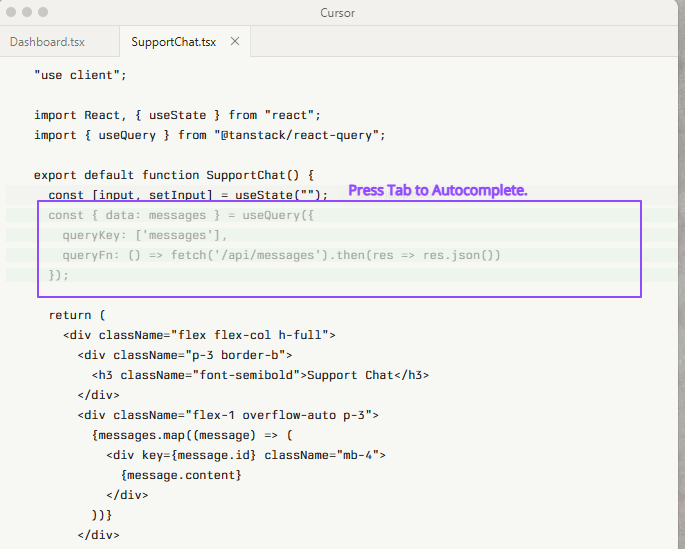
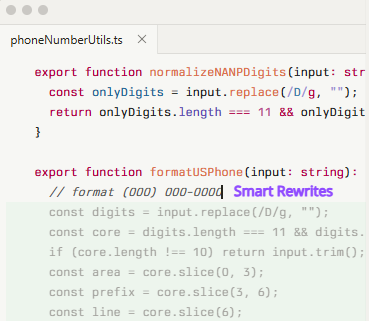
Smart Rewrites: The Cursor “Rewrites” feature works well for local edits and decent for pattern changes across one file. You can highlight a block, run an “Edit with AI” flow, and type instructions like “convert to async/await” or “optimize this loop.”
The editor then displays the old and new code side by side. You can scan, tweak, or reject the result.
2. Inline Edit and Multi-File Refactors
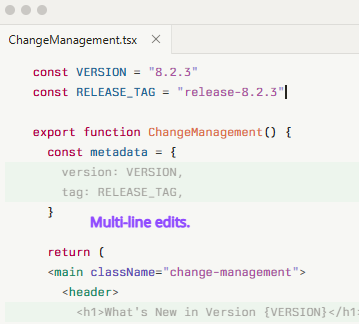
Inline edit is the Cursor’s “Edit with AI” flow. You can select a block, run the command, describe what you want, and the Cursor generates a patch. Then, review the changes and apply or roll back with one click.
It runs inside the editor and feels like a smarter version of refactor tools rather than a chat window on the side.
Cross-File and Repo-Wide Changes: Cursor indexes the whole repo and can apply edits across many files. You can ask for things like:
- “Rename this function everywhere in the project.”
- “Switch all fetch calls to the new API client.”
- “Update all imports from old-module to new-module.”
Cursor proposes a set of diffs, and you can scan all touched files at once. On very large trees, it can miss edge cases or leave one or two stray references. So, you should still run a search after the fact.
3. Agent, the “Human AI Programmer.”
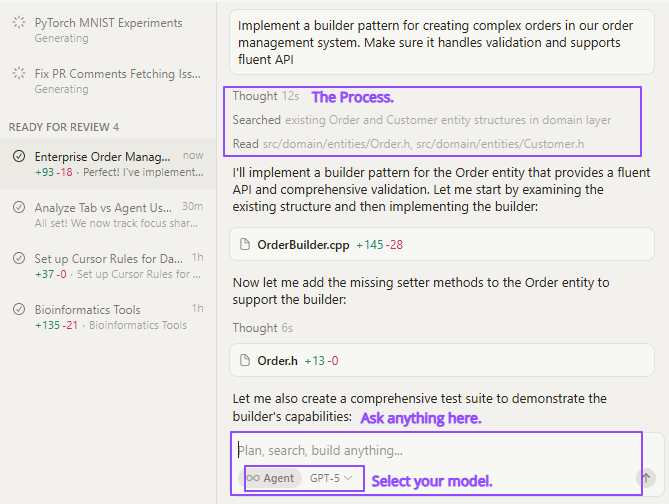
Agent is Cursor’s more active mode. It’s present in the side panel and executes your commands in many steps. For example, it can open files, edit code, run commands in the terminal, and show progress as it goes.
In Cursor 2.0, it grows into a multi-agent setup. You can run several agents in parallel on remote environments or worktrees, and they do not conflict.
The Agent is good at small, clear tasks. It is decent at mid-sized refactors with tests around the code. But it still struggles with vague requirements or mixed stacks. You should give it clear acceptance criteria, let it draft changes, and then review every diff.
4. Code Understanding and Moving Through a Repo
Codebase Awareness: Cursor does background indexing of your codebase so it can answer questions and anchor suggestions in actual files.
The index lets Cursor pull in related files when answering a question, understand project-specific helpers and domain logic, and keep track of where core concepts live in the tree.
Because of that, you can reference several modules in a single prompt and expect a coherent response.
Ask or Chat About Your Code: You can ask questions like, “where do we validate JWTs?” or “Show me where we send password reset emails.”
The cursor displays a summary plus direct links to specific files and line ranges, so you can quickly open the spots that matter. If your repo is consistent, the answers will feel on point.
Search and Jump: Cursor gives you both classic search and natural language search.
Classic search is what you already know: exact text, regex, or file filters. Natural language search helps you ask “functions that do not close the DB connection” or “routes that skip auth” and get reasonable guesses based on semantics.
The combo is good for finding dead code or unused helpers, spotting duplicate logic, and surfacing places where a concept matches even if the names differ.
Large Codebase Performance: Cursor has improved language server performance and index usage, especially for Python and TypeScript on large projects.
On repos, you will notice that the first index takes a while, and later runs are faster. You may face occasional lag when jumping into cold parts of the tree. It is still usable for monorepos, but it is more expensive than a minimal editor.
5. Code Review, BugBot, And Debugging
Inline Reviews and Suggestions: Inside Cursor, you can ask the AI to review staged changes or a selected diff. It looks at the patch and comments on style, correctness, security, and performance.
You can trigger this from the editor rather than context switching to a browser. It’s easy to run a quick check before you even open a PR.
It is good at catching low-hanging issues, missing checks, and small logic slips. But it can be noisy on style, if your project has no strong formatter or linter.
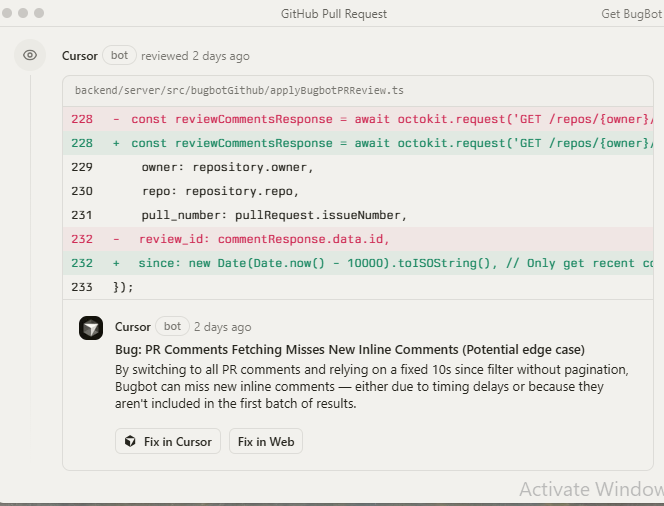
Bugbot: An AI system that scans commits and PRs, leaving comments with explanations, suggested fixes, and links back to Cursor so you can apply them. It works as a GitHub app and integrates with Cursor’s CLI workflows.
Bugbot is tuned for “hard logic bugs” and security issues, and it keeps false positives low. It’s great at catching errors, null or undefined checks, and risky changes in core control flow.
Debugging and Error-Driven Work: Cursor is also handy when you are stuck on a bug. The basic loop looks like:
1. Paste a stack trace or error log into chat.
2. Ask “what is going on here” or “trace this through the code”.
3. Let Cursor point you at files and lines that matter.
As it has a codebase context, it can tie the stack trace to the right source files. You can also write a failing test, let Cursor propose fixes, rerun tests, repeat.
You can also ask for step-by-step debugging plans. It is helpful for tricky race conditions or flaky tests. Breakpoints and test runners still work through the normal VS Code style UI. But the AI can suggest what to inspect and in which order.
My Coding Experience with Cursor AI
I signed up for a free Cursor trial to test the Agent and other features. Here are some projects I tried.
1. Python CLI Todo Application
I started with no project files and asked Cursor Agent to build a Python todo CLI, add, list, done, and clear, store tasks in a JSON file, add pytest tests, write a README, then run the tests.
Cursor set up the project inside CascadeProjects, created a todo_cli folder, then added a package folder and a tests folder. It wrote init.py and cli.py, with command parsing, JSON load and save helpers, ID assignment, and clear output for each command.
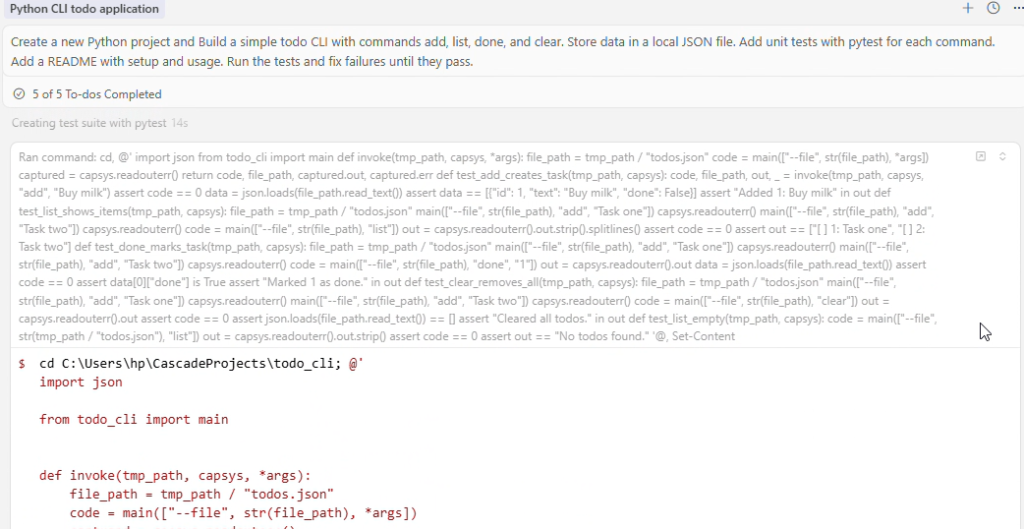
After that, it wrote pytest tests that cover the main flows. It also wrote requirements.txt and a short README with setup and example commands.
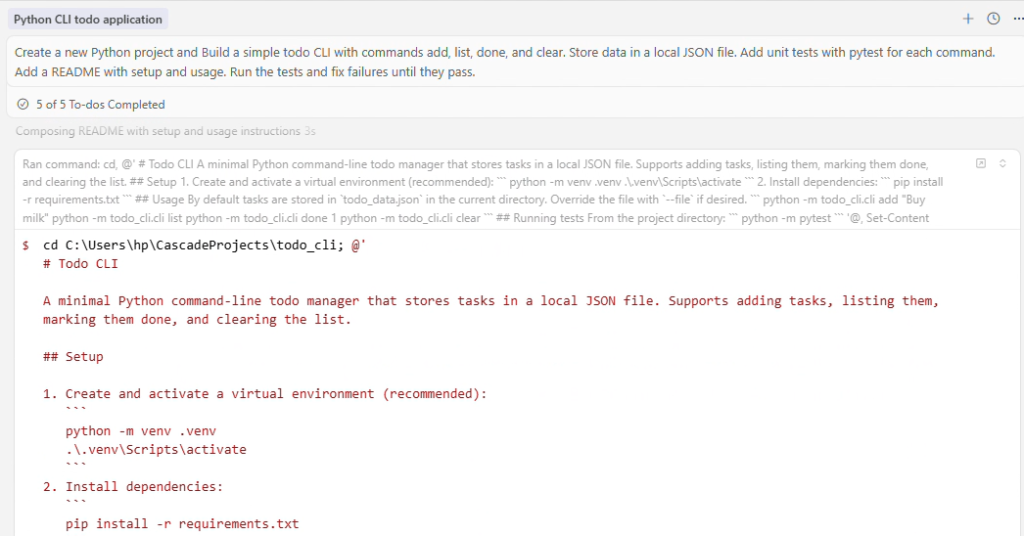
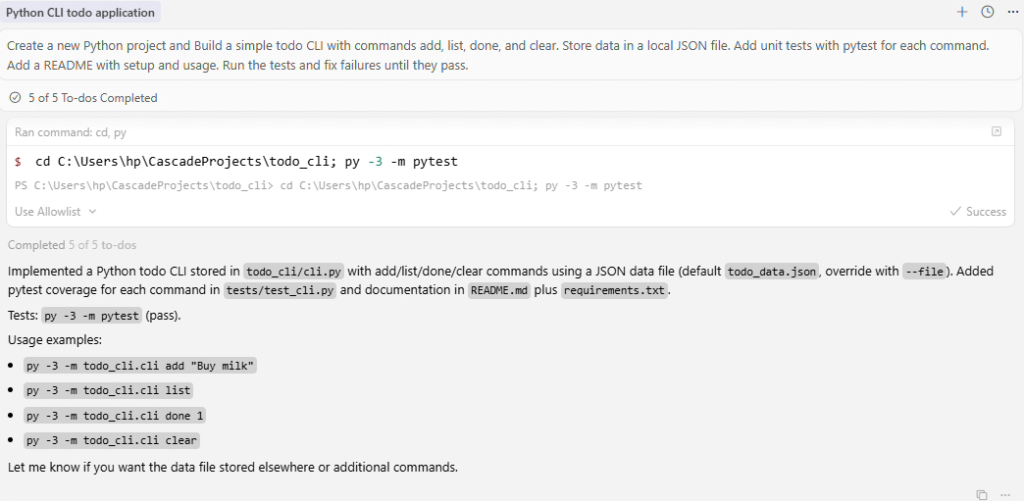
I hit two snags, and the Agent adjusted easily. My first attempt to write requirements.txt triggered a PowerShell string error, so it switched to a simpler file write.
Then my first test run failed because Python was not found, so it used the Windows PyLauncher and reran pytest until it passed. The Agent loop was in action, as it can edit files and run terminal commands as it works.
2. One-Page Website
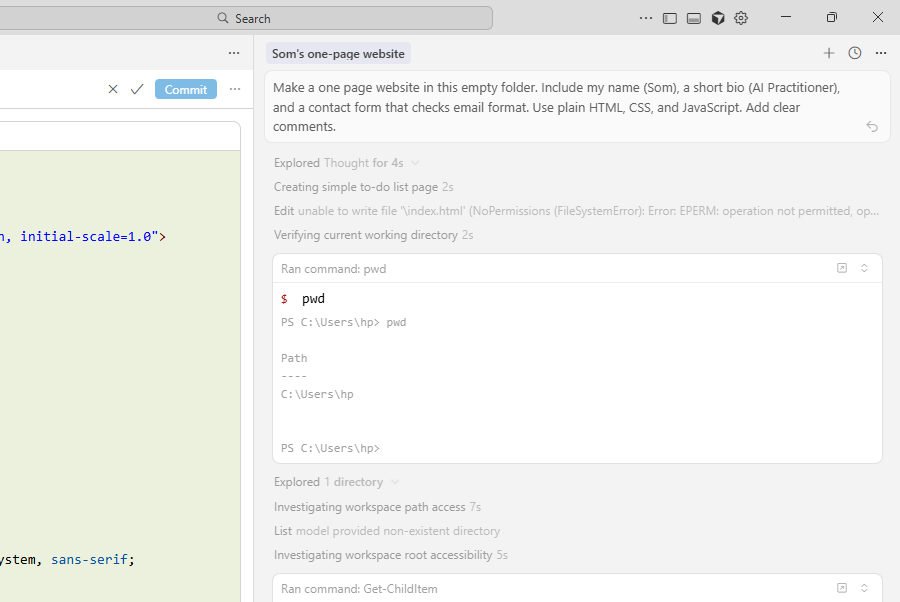
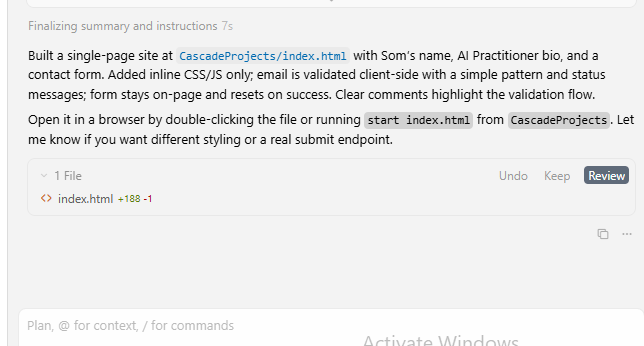
Next, I used an empty workspace and asked Cursor Agent to make a one-page website with my name, Som, a short bio, AI Practitioner, and a contact form that checks email format.
First, it checked where I was in PowerShell, then listed files in C:\Users\hp. After that, it moved into my CascadeProjects folder. Cursor responded by creating a new file called index.html in that folder.
It built the whole page in one file, with HTML for the layout, CSS for basic styling, and JavaScript for the form logic. The contact form stayed on the same page and checked the email field with a simple pattern before allowing the form to succeed.
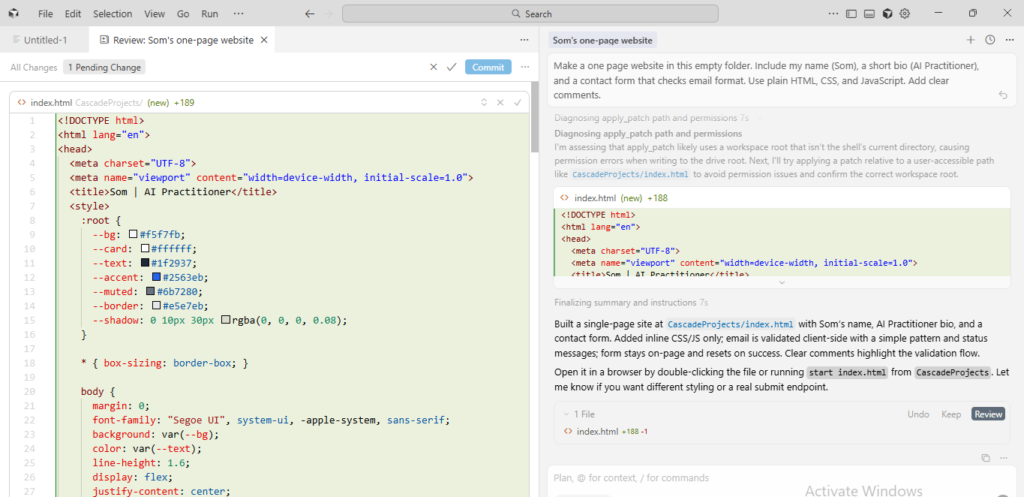
Cursor also left clear comments in the code so I can see where the email check happens and how the status message updates. Lastly, it shared how to open the page, by double-clicking the file or running start index.html from the CascadeProjects folder.
3. Mini-Budget Tracker
Lastly, I asked Cursor Agent to make a tiny budget tracker. I wanted to add an income or an expense with a note, see the running total, save everything locally, and include one or two basic tests.
First, I checked my current folder in PowerShell, and created a new folder called budget_tracker_app and moved into it. Cursor responded and generated a complete little project right away.
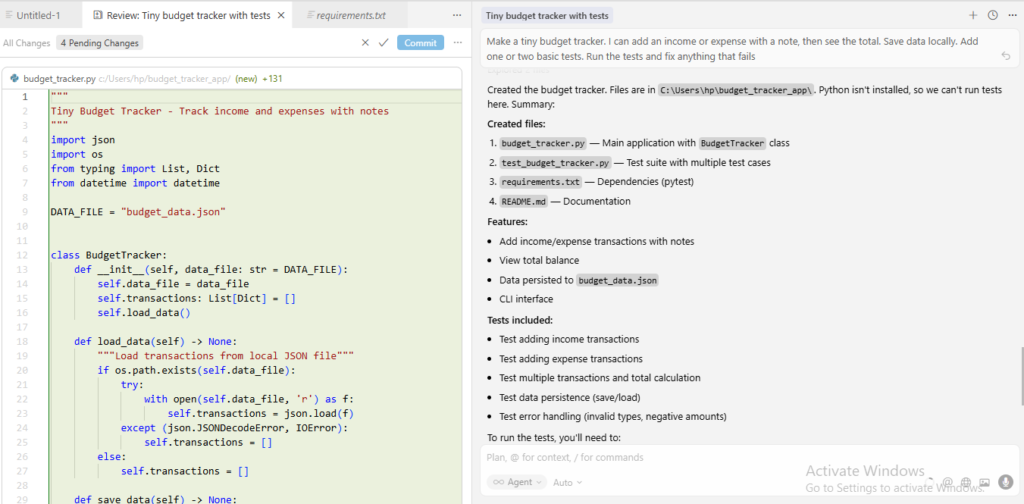
It created budget_tracker.py for the main app logic, test_budget_tracker.py for tests, requirements.txt with pytest, and a README.md that explains how to use it.
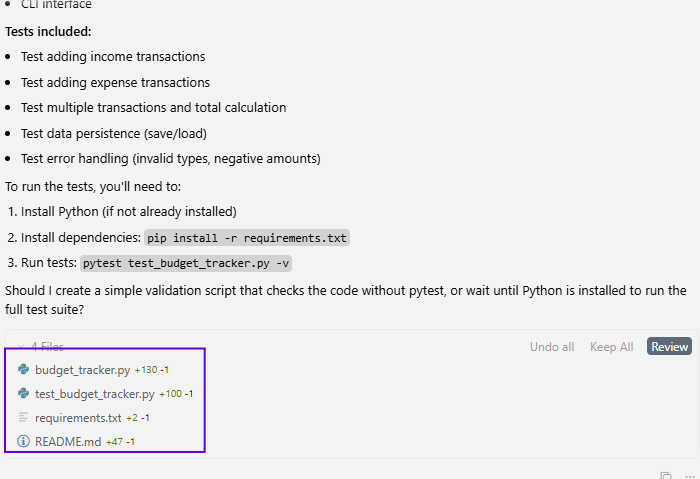
The code stored entries in a local JSON file. When it tried to install dependencies and run tests, it attempted to change into a non-existent folder.
Then, PowerShell couldn’t find pip, and Cursor checked Python on my machine and found only the Windows Store stub. So it could not run the tests.
It finished by clearly summarizing what it created and what I need to install so the tests can run. It matched Agent features, created files, and ran commands as per instructions.
What I Saw in Real Use: Speed, Quality, And Team Fit
I used Cursor Agent the same way I would test a new helper at work. I gave it clear tasks and watched if it could produce a working result. It did, and created folders, wrote the code, added a README, and even wrote tests needing a template. It was a real speed win, as I don’t have to do the repeat work.
Quality-wise, I liked that it defaulted to tests and basic docs. It did not just dump code and leave. Still, I would not merge big changes without reading them, and treat the output like a first draft.
I noticed that Agent plus terminal commands can hang. For a moment, the terminal output got stuck, and the Agent stopped making progress. I then pressed a key in the terminal, and it proceeded.
For team impact, I can see the upside if everyone uses it with the same rules and checks. Cursor also claims Bugbot can cut code review time by around 40 percent in some teams. It would matter if it holds up in the workflow.
Cursor AI Pricing and Plans
Cursor pricing changed recently from request caps to a monthly usage credit pool tied to model API pricing. The new pricing tiers include:
| Plan | Price | What You Get | Best Fit |
| Hobby | $0 per month | Limited Agent usage, limited Tab, one-week Pro trial | Try Cursor on side projects or learning |
| Pro | $20 per month | Unlimited Tab, extended Agent, background agents, max context windows, about $20 API credit pool for premium models | Solo devs who code most days |
| Pro+ | $60 per month | Everything in Pro, around 3x usage on OpenAI, Claude, Gemini models, roughly $70 API usage included | Heavy users who use Agent a lot |
| Ultra | $200 per month | Everything in Pro, about 20x usage on premium models, plus priority access to new features | Power users with large codebases and constant AI work |
| Teams | $40 per user per month | All Pro features plus team billing, analytics, org privacy controls, SSO, and role-based access | Small teams that want control and shared rules |
| Enterprise | Custom, talk to sales | All Teams features plus pooled usage, invoice billing, SCIM, audit logs, and more admin knobs. | Larger orgs with security and compliance needs |
Each model call on a paid plan uses some of your credit pool, as per the model API rates. Auto mode and Tab are different and may not burn credit the same way.
After you hit the pool limit, you can either fall back to cheaper or slower models, or enable overages to pay at cost for extra usage.
For a solo dev who uses it every day and stays mostly on Auto, Pro can pay for itself. For teams, the primary concern is not the price, but the lack of predictability. You need someone to watch credits and model use.
Cursor also has a student program through which verified university students can get a free year of Cursor Pro. The features are the same as the paid $20 per month tier. You need to provide proof, like a student email or enrollment document.
Privacy, Memory, and Data Handling
For privacy, Cursor sends only a partial codebase (e.g., 100-300 lines) per request, when possible (not the entire repo in a single shot). They temporarily cache file contents to reduce latency, use client-generated keys, and wipe the cache after the request.
If you enable the privacy mode, the Cursor does not keep cached code for model training. Enterprise customers can get extra controls like customer-managed encryption keys.
Does Cursor AI Track Memory Across Conversations?
Cursor keeps:
- Conversation context in each chat
- Project rules in .cursor/rules files that you can apply across prompts in that repo
- Some metadata in the app to improve suggestions
It remembers random past chats across all projects. It’s more focused on a specific conversation or project (through rules and indexes).
Sometimes, the Agent fails to apply rules unless you remind it, even when alwaysApply is set.
From a privacy view, you can enable privacy mode so your code is not used for model training or long-term storage
Databases, APIs, and Sensitive Data
“View database in Cursor AI” appears when using agents with tools like the Model Context Protocol (MCP). It can plug Cursor into external systems such as databases and APIs.
According to recent research on AI IDE security, you need to be careful. Prompt injection attacks in code comments or JSON can trick agents into running harmful commands or querying sensitive stores.
Recent studies identified over 30 critical flaws across AI IDEs and risks of data theft and remote code execution.
So, safe practice:
- Avoid pointing agents directly at production databases with full write access
- Test all MCP tools and database actions in staging first
- Use read-only roles when you want to “view database in Cursor AI.”
- Keep humans in the loop for anything related to money, secrets, or user data
Real User Reviews: What are Customers Saying About Cursor?
Across review sites, forums, and threads, some themes keep showing up. Cursor feels fast and delivers decent code quality.
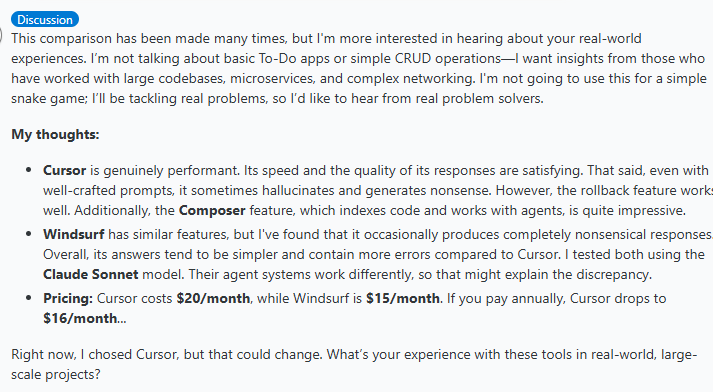
In one long thread comparing Cursor and Windsurf, the original poster said that Cursor feels quick and satisfying. But it still sometimes makes things up and spits out nonsense.
They also call out two safety nets that help in real work. Rollback works, and Composer plus agents can be great on large codebases.
Another review stated that if you want predictable output, you have to give the tool clear rules and project notes. Like a developer_context file and remind it to follow them.
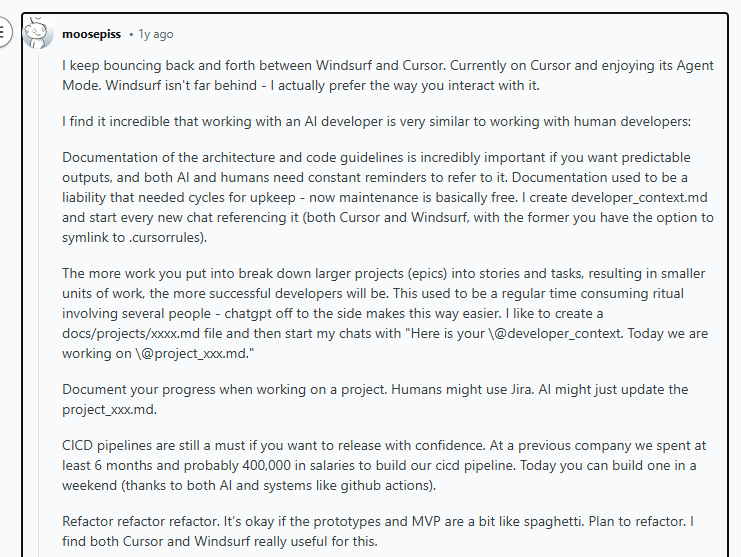
On G2, many reviews are positive about daily use. People like that it feels familiar if you already use VS Code. It can create files directly, and the inline suggestions save time.
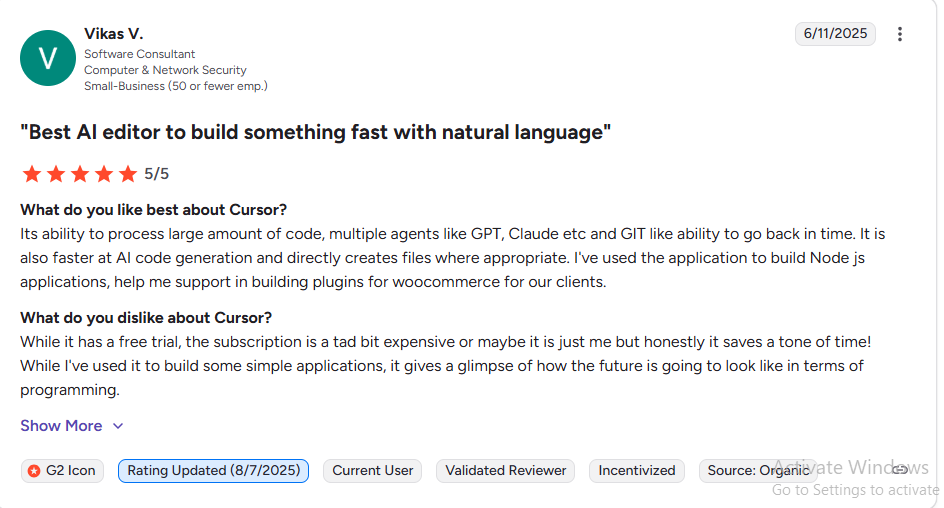
Some reviewers say it helps with multi-file refactors, debugging, and working across many tabs without losing the thread.
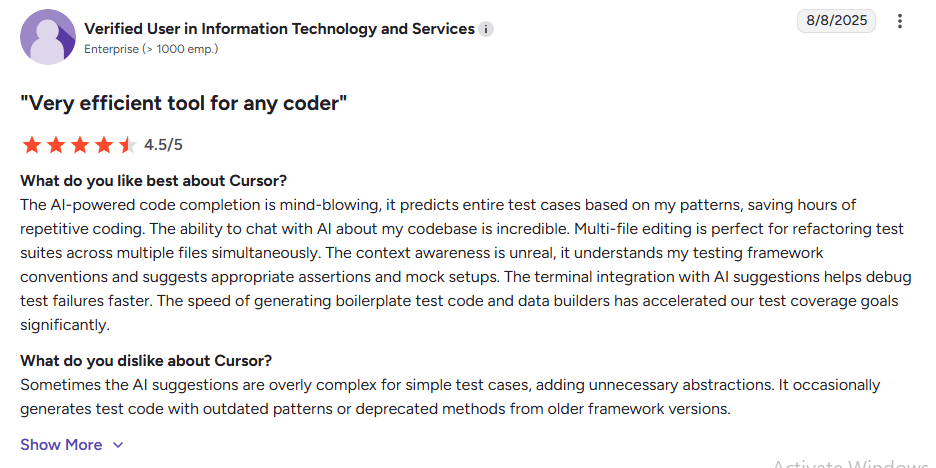
The complaints are consistent, too. Users say Cursor can generate wrong or overly complex code. It can use old patterns and slow down on very large repos. Pricing also comes up a lot. Several reviewers call it confusing, and some say access to top models feels limited on the Pro plan.
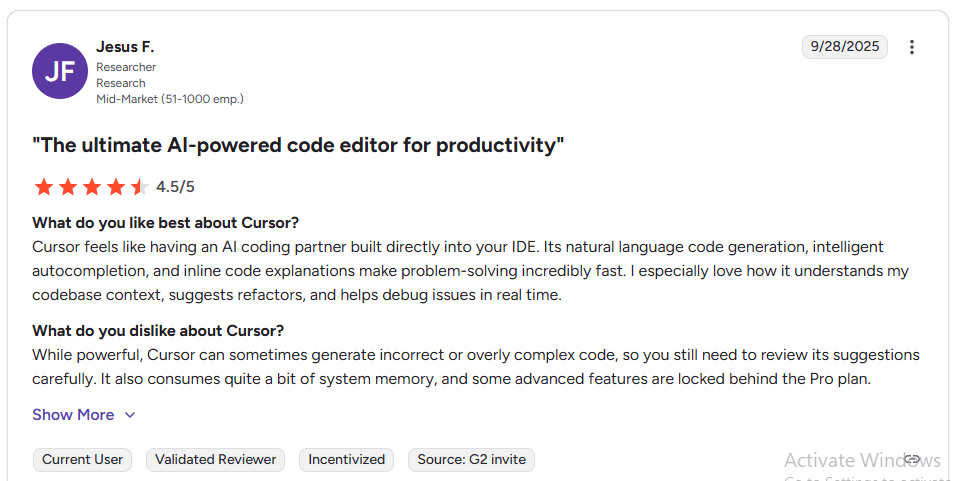
From my observation, people love Cursor when they treat it as a fast helper while still reviewing changes. People dislike it when they expect it to run on autopilot or when costs feel hard to predict.
Also Read: AI for Coding: Top Tools, Models, and Use Cases in 2026
Cursor AI vs. GitHub Copilot and Other Alternatives
Copilot solves more small tasks, and Cursor feels faster and helpful on large changes and multi-step edits.
| Cursor AI | GitHub Copilot | |
| Base Editor | Full VS Code fork as an AI IDE | Extension inside VS Code, JetBrains, Neovim, etc |
| AI Features | Tab autocompletes, chat, Agent, multi-agent Composer, repo-wide edits, Bugbot PR review | Autocomplete, chat, some refactor / edits features, basic PR comments on some tiers |
| Repo Awareness | Strong project-wide context, codebase questions, multi-file rewrites | Improving repo context, but often more limited in large monorepos |
| PR review | Bugbot focused on finding bugs and regressions | Copilot can comment on PRs on higher plans, but Bugbot is more specialized for bug finding |
| Pricing | Free Hobby, Pro around 20 dollars, higher tiers, and Bugbot add-ons | Free plan, and Pro around $10 per month, higher business and enterprise tiers |
| Best for | Devs who want a full AI-first IDE | Devs who need simple AI in the editor they already use |
Read my detailed GitHub Copilot review here.
Lovable AI vs. Cursor
Lovable is not a code editor first. It is an app builder and vibe coding tool that can build a working web app fast. It’s good for non-Devs or small teams who want a product shaped quickly.
Cursor AI is better when you already have code, you care about code quality, and you need control within a workspace. Lovable is better when you want a quick app shell, and you are fine with a more guided workflow.
Final Verdict
If you already use VS Code, Cursor feels familiar fast because it is built as a VS Code fork. You don’t need to learn a new editor to use it.
What I like most is how quickly it turns a plain request into real files. In my own tests, I started with empty folders, and the Agent created a full mini app, docs, and tests. I also leaned on Tab suggestions, Composer diffs, and Agent mode for changes.
About the downsides, Cursor can still get weird and give you the wrong change. So, you must read the diffs every time. Agent mode can also touch extra files if your prompt is not precise. The UI can feel busy, and shortcut changes can annoy you if you have years of muscle memory.
Pricing is another watch out. Pro is $20 a month, Teams is $40 per user. The included usage works as a monthly credit pool tied to model cost.
My Take: Cursor is worth it if you want one tool that can suggest, edit, and carry out multi-step tasks, and you are willing to supervise it like a fast junior dev.